
I thought I wanted a tool that would click buttons for me. After actually using it, I found the real value somewhere else entirely — letting AI step into a real browser environment, look at what’s on screen, and help you sort through what matters.
Before We Start: My Expectations Shifted
When I first installed the Codex Chrome extension, my thinking was straightforward.
“It can control the browser, so let it handle the repetitive stuff.”
Batch operations. Auto-submit. Unattended execution. Those words practically wrote themselves in my head.
But after actually using it for a while, my judgment quietly turned.
Its most valuable feature isn’t “doing everything automatically.” It’s allowing AI to enter a real web environment — reading pages, organizing information, checking status, and smoothing out tasks that were previously fragmented.
That distinction matters. It’s worth unpacking.
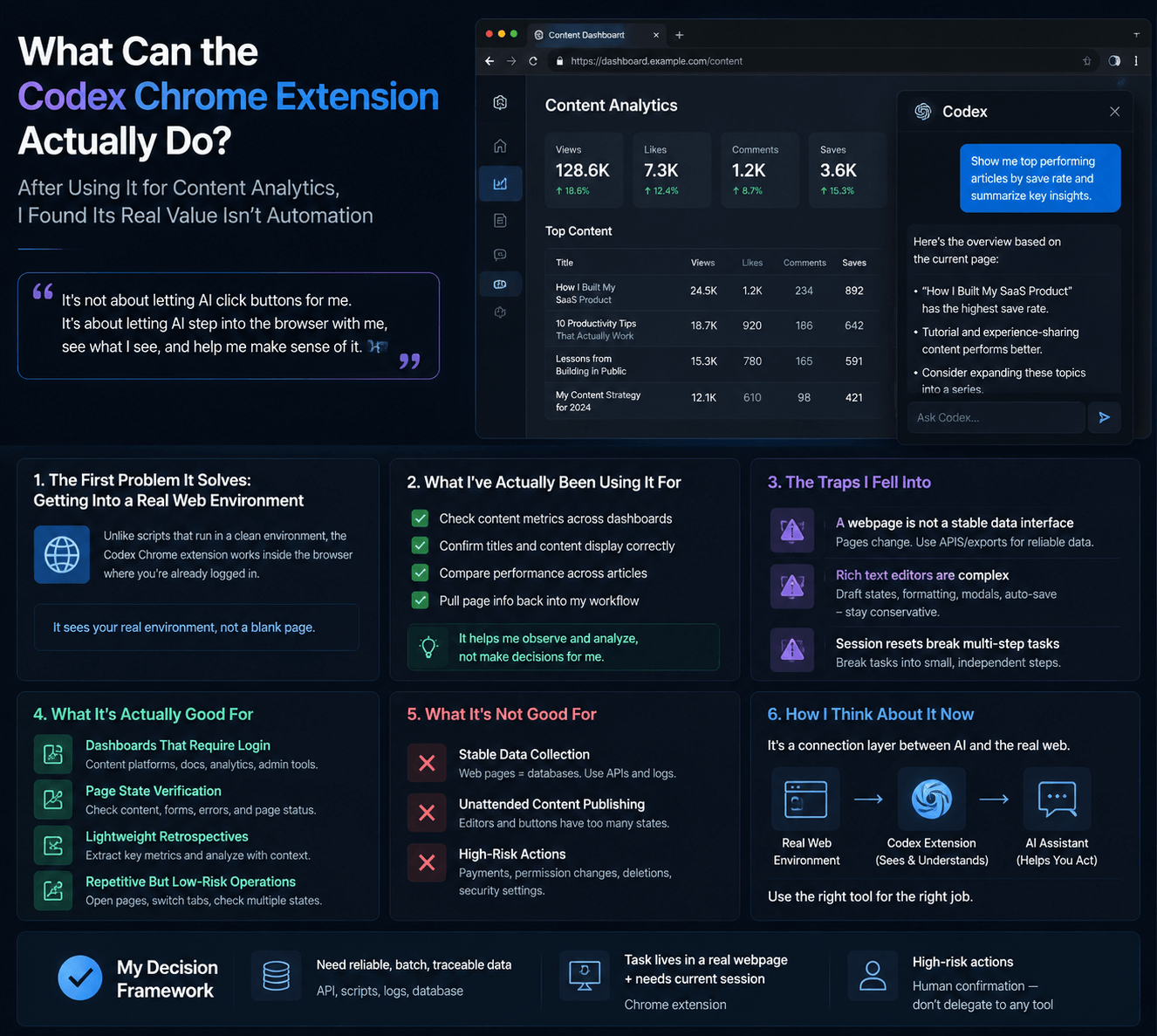
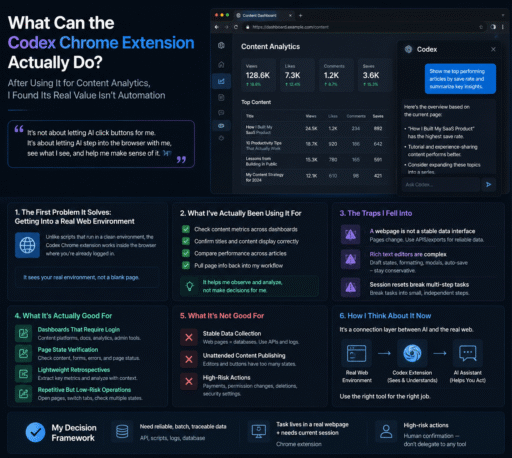
1. The First Problem It Solves: Getting Into a Real Web Environment
Here’s something I hadn’t thought through carefully before.
Playwright, Puppeteer, scraping scripts — all of these can open pages, click elements, and extract content.
But they typically run inside a clean, fresh environment.
Great for testing, scraping public data, checking page rendering. Fine.
Except most of my actual work isn’t on public pages. It lives inside:
- Content management dashboards
- Analytics panels
- Documentation systems
- Project management tools
- SaaS admin consoles
These all depend on your current login session and the specific browser environment you use every day.
That’s where the Codex Chrome extension becomes genuinely useful: it works inside the Chrome browser where you’re already logged in.
It doesn’t see a blank page loaded fresh. It sees the actual environment you work in.
This sounds straightforward, but for an AI workflow, it’s significant.
A lot of real tasks aren’t “access a webpage.” They’re “in my current account session, what’s actually happening on this page right now.”
That single sentence is the most accurate way I can describe what the extension is actually for.
2. What I’ve Actually Been Using It For
My main use has been content dashboard retrospectives.
One clarification upfront: that doesn’t mean letting it make editorial decisions for me. It means using it to handle observations that were previously fragmented and tedious.
For example:
- Opening my content backend to check read counts, interactions, saves, and comments across different pieces
- Confirming that titles and body text are displaying correctly
- Comparing performance across several articles to see which topics deserve a follow-up
Could I do all this myself? Yes, and probably faster.
The problem is that when you’re doing this across multiple platforms every day — then pulling that data together with topic research, headline performance, and content direction — it becomes exhausting.
You’re not worn out by any single action. You’re worn out by the constant tab-switching, number-scanning, mental note-taking, and then rebuilding all of that context in a separate document.
The extension’s role here is to pull page information back into my workflow.
Once it has read a page, I can ask it to go further: which headline types generate more clicks, which pieces have higher save rates, which content is worth developing into a series.
💡 That’s more reliable than asking AI to generate topic ideas in a blank window — because it’s at least working from real feedback.
3. The Traps I Fell Into
🕳️ Trap One: A Webpage Is Not a Stable Data Interface
I underestimated this initially.
To a human, a content dashboard is obvious. One glance and you know which number is views, which is likes, which is comments.
To a tool, a webpage is just a webpage.
There may be multiple similar-looking text elements near the same number. Content that loads on scroll may be missing. Some data is buried two levels deep. Some figures are visible but completely unsuitable for treating as structured data.
My rule now:
Don’t treat a browser page as a database.
For serious, reliable statistics, use exports or APIs.
The Chrome extension is better for lightweight observation: confirming page state, noting key metrics, supporting directional judgment.
It can eliminate a lot of mechanical clicking. But it cannot transform a page designed for humans into a trustworthy data pipeline.
Once you’re clear on that boundary, the experience improves significantly.
🕳️ Trap Two: Rich Text Editors Are Harder Than Simple Input Fields
Content platform editors are not simple text boxes.
They have draft states, formatting states, keyboard shortcuts, modal dialogs, paste behavior rules, sometimes auto-save.
For humans, none of this is a problem. We instinctively check whether content actually got entered, whether formatting broke, whether buttons are responsive.
Automated tools don’t always handle these details reliably.
Something may appear to have been entered without the page actually saving it. A button might be visible on screen, but if focus is wrong, clicking produces no effect.
My approach to editor pages now is: stay conservative.
- ✅ Use it to check formatting
- ✅ Use it to identify problems
- ✅ Use it to position draft content
- ❌ For public publishing, saving critical settings, deleting content — I confirm the final step myself
This isn’t distrust of the tool. It’s appropriate respect for how much complexity lives inside a web page.
🕳️ Trap Three: Session Resets Break Multi-Step Tasks
This one is very practical.
Pages refresh. Connections reset. Complex web apps don’t always cooperate.
When humans lose their place in a browser session, they know where they were and what they were doing.
When AI loses the connection, it needs to re-establish what’s currently on screen.
That directly changed how I structure tasks.
I used to think in whole workflows:
Open dashboard → Check data → Organize findings → Confirm page state → ContinueNow I break things into discrete, independent steps:
[Step 1] Read data only
[Step 2] Organize findings
[Step 3] Confirm page state
[Step 4] Decide whether to act
More steps, but much more stable.
⚠️ The worst case in browser automation isn’t slowness. It’s when something goes wrong in the middle and execution continues anyway.
4. What It’s Actually Good For
After sustained use, I’ve settled into four scenarios.
✅ Scenario One: Dashboards That Require Login
Content platforms, documentation systems, project tools, analytics panels.
Whenever a page depends on your current browser session, this extension is more natural than running a script.
✅ Scenario Two: Page State Verification
Checking whether a page loaded correctly, whether a piece of content is displaying properly, whether a form is missing required fields.
Simple tasks — but well-suited to an assistant that can actually see what’s on screen.
✅ Scenario Three: Lightweight Retrospectives
Extracting key metrics from a page and analyzing them alongside existing notes.
For content creators, independent developers, and tool-site operators, this kind of small retrospective is extremely common and consistently time-consuming.
✅ Scenario Four: Repetitive but Low-Risk Operations
Opening fixed pages, switching tabs, checking multiple states, organizing page content.
It removes a lot of “clicking around manually” from the day.
5. What It’s Not Good For
Just as important: the things I now deliberately keep out of scope.
❌ Don’t Use It as a Stable Data Collection System
If you need long-term, accurate, traceable data, a web page is not the right source.
Use APIs, databases, and logging systems instead.
❌ Don’t Use It for Unattended Content Publishing
Web editors and submit buttons carry too many states.
For publicly visible content and account settings, the final step should be human-confirmed.
❌ Don’t Use It for High-Risk Actions
Payments. Permission changes. Deleting data. Modifying account security settings.
These situations shouldn’t be rushed through automation to save a few minutes.
6. How I Think About It Now
After working with this extension for a while, my mental model is clearer than when I started.
It’s not a replacement for APIs. It’s not a replacement for an operations backend.
It’s better understood as a connection layer:
It brings AI out of a plain text window and into a real web environment — where it can understand page state and help you complete the fragmented tasks that humans would otherwise handle manually.
My decision framework now looks like this:
| Situation | Better Approach |
|---|---|
| Need reliable, batch, traceable data | API, scripts, logs, database |
| Task lives in a real webpage + needs current session | Chrome extension |
| High-risk actions | Human confirmation — don’t delegate to any tool |
Once you’re clear on these boundaries, unrealistic expectations stop forming.
Final Thoughts
I’ll keep using it. But I won’t hand everything to it.
It’s well-suited to content dashboard retrospectives, page verification, and workflow support. It also helps me notice things that manual clicking used to surface — but that I was too context-switched to catch.
For genuinely stable, long-running systems, the real questions remain:
Where does the data come from? How are calls logged? How are failures tracked? How is cost calculated?
The Chrome extension can help you see what’s happening on the ground. It can’t build the whole infrastructure for you.
That distinction is more useful to me than knowing whether it can click a button.
💬 Have you tried the Codex extension or similar browser AI tools? Any experiences, unexpected uses, or traps you fell into? Share in the comments — I’d genuinely like to hear them.